RSS
Facebook
Twitter

Showing posts with label Internet. Show all posts

Friday, 19 October 2012

Test Your Internet Speed ...

Well..
All of us have Internet Connections at our places... and pay for costly Hi-Speed Broadband Plans...
But never thought of checking the speed that you actually get?

Well I made an application to serve the purpose.....

About Application :
> Application Size = 208 KB
> It checks the Internet Speed from a Calcutta Server
> Downloads a 128 KB of Sample Data
> It calculates your inernet Speed for you

What you need to have :
> Windows 2000, NT, Xp, Vista or higher
> For Windows Xp, NT, 2000 .Net Framework 2.0 or higher (Vista has it preloaded)
> Internet Explorer Installed

>>>> Download Application <<<<

Usage :
** Just Double Click to test the speed of your connection.

Enjoy...
Tricks For Keep Your Internet Alive...

These days Broadband connections are very common...

As a result we are always connected... this annoys the ISP's !

Recently, I made some changes in my internet connection and faced the following problem and came out with a solution...

***** Problem *****
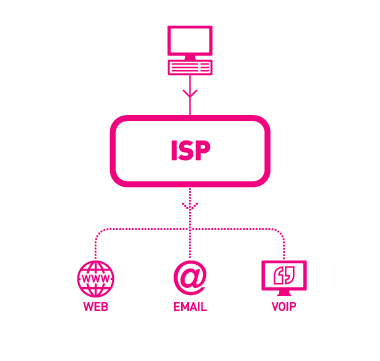
ISPs(Internet Service Providers) automatically disconnects the connection after some time in case of absolute inactivity. This reduces the load on their servers.
But...
This is irritating for the user, as he has to login every now and then...

Now, Imagine you are reading an article and after 10 mins.. as you turn to next page...? It asks you to Login..??? Now... that's crazy... isn't it ?

***** Solution *****
I coded an application that keeps the connection alive ! Basically it maintains little activity and prevents it from logging out. This is tested to be safe.. so no worries.

-------------------------------------------------------------
Application : Keep_Alive
Size : 40 KB
It uses : 128 bytes every 5 min. (i.e. 36KB in 1 day)
Link : Download Here
-------------------------------------------------------------

***** How To Use *****
> Double-Click the application(Keep_Alive)
> The Application runs in hidden mode, i.e. it will disappear and run in background
> You are done.. Now your connection will remain alive, forget about it.


-------------------------------------------------------------

But a Problem !

 On Restart the you again have to start the Application !!!

--------------------------------------------

So... Add it to your Start Up
-------------------------------------------------------------
Adding to StartUp...
-------------------------------------------------------------
** Go to Start > All Programs
** Right Click on Startup > open
** In Startup paste the application (Keep_Alive)
** This will start the Application every time you start your computer

Mission Accomplished...!
Now you will not get logged out automatically as the application will maintain some activity.

If you want to remove it...
** Just Delete it from the Startup Folder & Restart.
** To close it without Restart.. (ctrl + shift + esc) > Processes > Keep_Alive > End Process.

How to Browse the Web Anonymously with Tor

The power of the Tor Browser Bundle allows you to browse the internet anonymously.
Anonymity online is an important issue. Many people use VPNs as a way to stay anonymous. However, many of the VPN services are expensive. Setting up a free one yourself is very difficult.
You can easily browse the internet anonymously without having to configure a VPN or use a paid service. Tor is a client that routes your traffic through a own network and other Tor users. This setup will zigzag and weave your web browsing through many different Tor nodes using encryption.
Picture the service as if someone was following you in real life, and you randomly walked through a maze of stores throughout your city to evade this person. Likewise, in theory, your ISP should not be able to tell what your doing as tor manipulates your network traffic.
Of course, all anonymous services can be used for nefarious means. However, since Tor routes traffic through other Tor users, it is entirely possible that TOR will route some evil activity through your network. As Tor’s network is mainly created through users sharing and rerouting the content for each other, you could be helping other users hide illegal activity. The ethical dilemmas and moral conflicts involved are personal choices for you to decide.
This article is not intended for using Tor to hide illegal manner. Be safe and be smart.
1)  TOR has a special package called the Browser Bundle. This is a version of Firefox integrated with TOR magic to streamline the performance. Trying to configure TOR for Chrome or a non “tor-fied” version of Firefox can be difficult and yield very slow connections in some cases. You can download the Tor Browser Bundle here:
2) Once Tor Browser Bundle downloads, we need to extract it. I simply extracted it to my Desktop in this example.
Tor
3)  Now launch the file called Start Tor Browser.exe in the Tor Browser folder you just extracted.
4) A program will pop up called the Vidalia Control Panel. It attempt to connect to the Tor network.
5)  TorBrowser will then pop up with a message in green showing that the connection is successful. It will also list your virtual IP address. If you close the TorBrowser, Vidalia will automatically disconnect from the Tor network as well
6) Want to change your IP again? Switch to Vidalia with TorBrowser still open and click Use a New Identity
After this you can refresh you page and see that your virtual IP address has been changed. At this point you can proceed with anonymous browsing of the web through the TorBrowser. Remember that by installing additional browser extensions and plugins, you may reduce the effectiveness of your anonymous connection.

To Increase the Internet Speed:


Open Notepad and paste the below code in it.
 [HKEY_LOCAL_MACHINE\SYSTEM\Curr entControlSet\Servic es\Tcpip\Parameters]
 "SackOpts"=dword:00000001
 "TcpWindowSize"=dword:0005 ae4c
 "Tcp1323Opts"=dword:000000 03
 "DefaultTTL"=dword:0000004 0
 "EnablePMTUBHDetect"=dword:000 00000
 "EnablePMTUDiscovery"=dword:00 000001
 "GlobalMaxTcpWindowSize"=dword :0005ae4c
 Now save this file as speed.reg. Execute it and observe the change!

Monday, 17 September 2012

Network Hacking


NETWORK HACKING :
Network Hacking is generally means gathering information about domain by using tools like Telnet, NslookUp, Ping, Tracert, Netstat, etc.
It also includes OS Fingerprinting, Port Scaning and Port Surfing using various tools.

Ping :- Ping is part of ICMP (Internet Control Message Protocol) which is used to troubleshoot TCP/IP networks. So, Ping is basically a command that allows you to check whether the host is alive or not.
To ping a particular host the syntax is (at command prompt)--
c:/>ping hostname.com

example:- c:/>ping www.google.com


Various attributes used with 'Ping' command and their usage can be viewed by just typing c:/>ping at the command prompt.